YouTube Summary Prompts: How to Summarize a YouTube Video with ChatGPT (2026)
Updated August 3, 2026
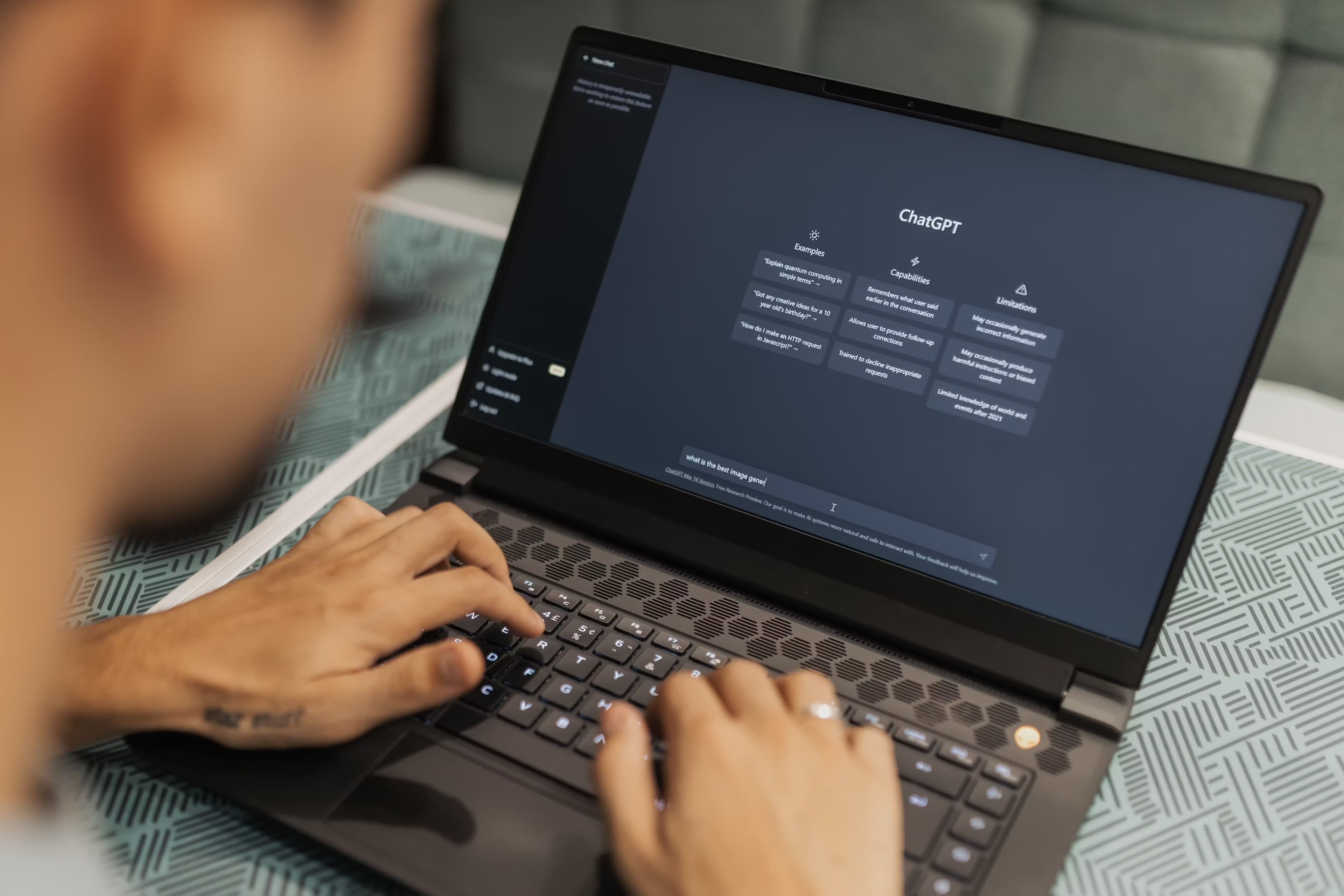
The key to summarizing a YouTube video well with AI chatbots like ChatGPT, Claude, or Gemini is a good prompt — not just the transcript.
This guide has copy-paste YouTube summary prompts organized by output type, plus how to write your own when none of the templates quite fit.
On this page
Can ChatGPT summarize a YouTube video?
Yes — but only from the transcript, not the video itself. ChatGPT cannot watch, listen to, or open a YouTube link. It reads text you paste in, so every workflow starts by getting the caption transcript first.
Once you have that text, a specific prompt produces structured output — bullets, study notes, action items — instead of a vague paragraph. The four steps below walk through the full process.
How to summarize a YouTube video with ChatGPT
The manual ChatGPT workflow comes down to four steps:
- Get the transcript — copy captions from YouTube or use a transcript tool.
- Pick a prompt — choose an output type from the copy-paste library below.
- Paste transcript + prompt — open ChatGPT or Claude, paste both, and send.
- Review and refine — tighten format, fix tone, or pull out action items with follow-up prompts.
First, you need the transcript
ChatGPT and Claude cannot watch a YouTube video, so for the AI chatbots to know what to summarize, you need to provide the transcript. Step one of every prompt workflow is getting that text.
Use any online tool or SkipBait's free YouTube transcript extractor to copy the transcript to your clipboard. You are usually required to paste the video URL into the tool.
How to write a good YouTube summary prompt
Vague prompts like "summarize this" give vague, inconsistent output. Four principles that show up across the best ranking prompt guides:
- State the task clearly — "summarize", "extract", "turn into notes", not just "tell me about this".
- Specify the output — "7 bullet points", "under 100 words", "study notes with headings".
- Add context / who it's for — "I'm revising for an exam", "for a sales team briefing".
- Be specific — the more you constrain format and audience, the more consistent the structure run to run.
Copy-paste YouTube summary prompts
Pick the output type you need, copy the block, paste your transcript at the bottom, and send. These prompts are model-agnostic — they work in ChatGPT, Claude, Gemini, and Perplexity.
Quick TL;DR / bullets
Summarize the following YouTube transcript in 6 clear bullet points, most important first. Add one sentence at the top stating what the video is about and who it is for. Keep the whole summary under 120 words.

Transcript:
[paste transcript here]
Key insights / takeaways
Extract the 5–7 key insights and main lessons from the following YouTube transcript. Number each insight. Skip filler and repetition.

Transcript:
[paste transcript here]
Study notes
Turn the following YouTube transcript into structured study notes.
Use clear headings for each main topic, bullet points under each, and bold the key terms.

Add a short "Key takeaways" section at the end with the 3 most important points.

Transcript:
[paste transcript here]
Timestamped outline
Only works if your transcript includes timestamps (e.g. from YouTube captions or a tool that preserves them).
Summarize the following YouTube transcript and list the main topics in order, with their timestamps when they appear in the transcript. Use a scannable outline format.

Note: this only works if your transcript includes timestamps (e.g. [00:12] or 0:12).

Transcript:
[paste transcript here]
Step-by-step (how-to / tutorial videos)
Summarize this how-to YouTube transcript into clear step-by-step instructions. Include key tips and common mistakes the speaker mentions. Number each step.

Transcript:
[paste transcript here]
Action items
Read the following YouTube transcript and give me a numbered list of specific, actionable steps the video recommends. For each step, add one line on why it matters.

Ignore filler and focus only on what I should actually do.

Transcript:
[paste transcript here]
Action roadmap
Read the following YouTube transcript. First, extract the key points as bullet points. Then write a short action roadmap for how to achieve what the speaker is teaching — concrete next steps in order.

Transcript:
[paste transcript here]
Detailed notes (capture everything)
Create detailed notes from the following YouTube transcript, capturing every major concept, term, and example in order. Add a short glossary of technical terms at the end.

Transcript:
[paste transcript here]
ELI5 / beginner-friendly
Summarize the following YouTube transcript and explain the topic simply, as if for a beginner with no background in the subject. Use plain language and short paragraphs.

Transcript:
[paste transcript here]
Email / briefing recap
Write a short email summarizing the key takeaways from this YouTube video transcript. Keep it concise and suitable for a team update — 3–5 sentences max, plain language.

Transcript:
[paste transcript here]
Key quotes
Pull 3–5 direct quotes from the following YouTube transcript that best capture the speaker's core arguments or insights. For each quote, add one line explaining why it matters.

Transcript:
[paste transcript here]
Which AI should you use?
The prompts above work across models. Brief honest notes on each:
- ChatGPT / Claude — paste transcript + prompt. Best default for control over format. For long videos, use a model with a larger context window or summarize in sections (see below).
- Gemini — can often read a YouTube link directly without pasting a transcript, but summarizes from the video's audio/captions and can miss detail shown only on screen. YouTube's built-in Ask (also Gemini-powered) is a separate on-page option — handy for a quick question, less so for a consistent structured summary.
- Perplexity — research-first; can pull in outside context but is slower. Good when you want the summary tied to wider sources, not just the video.
For method-by-method comparison (extension vs paste vs Ask), see the SkipBait YouTube video summarizer feature page — that guide owns tool discovery; this one owns the prompts.
Summarizing long YouTube videos
Long transcripts exceed context limits or degrade summary quality. For videos over 30 minutes, use this step-by-step chunking workflow:
- Split the transcript — divide into 3–4 roughly equal parts. Label each clearly (Part 1, Part 2, etc.).
- Summarize each part — paste one part at a time with the part-summary prompt below.
- Combine part summaries — paste all part summaries into ChatGPT with the combine prompt to get one cohesive overview.
- Refine the result — use the follow-up prompts to tighten format or pull out action items.
Part summary (repeat for each section)
Here is Part [N] of a YouTube transcript. Summarize this section in 5 bullet points, focusing on the main ideas. Skip filler and repetition.

Transcript:
[paste transcript here]
Combine part summaries
Here are summaries of Parts 1–[N] of a YouTube video. Combine them into one cohesive summary under 200 words. Deduplicate repeated points and keep the most important ideas first.

[paste part summaries here]
Alternatively, use a larger-context model — newer ChatGPT and Claude tiers handle more text in one pass. If you summarize long YouTube videos often and do not want the copy-paste-per-video loop, a one-click on-page summarizer skips the manual step — SkipBait's free tier includes 2 AI summary bundles per day and unlimited transcript retrieval.
Refine your summary
The first output is rarely perfect. Send a follow-up message in the same ChatGPT or Claude thread with one of these revision prompts — paste your summary where indicated:
Make it more concise
Make this summary more concise — cut to 100 words while keeping the main points.

[paste summary here]
Reformat as study notes
Reformat this summary as study notes with clear headings and bullet points under each topic.

[paste summary here]
Extract action items only
Pull out only the action items from this summary as a numbered checklist. One line per item.

[paste summary here]
Troubleshooting inaccurate summaries
- Output too vague — tighten the task and output format ("6 numbered takeaways, max 15 words each").
- Missing the point — add who the summary is for and what to focus on ("I care about the pricing advice, ignore the intro banter").
- Wrong tone — specify it ("formal briefing", "casual notes for myself").
- Names, numbers, or quotes look wrong — always spot-check against the video. AI summarizes from captions, and auto-generated captions are often ~60–70% accurate on technical terms.
Get 1-click summaries from
Right inside YouTube watch page
Skip the copy-paste loop. SkipBait generates a structured summary bundle directly on the YouTube watch page — TLDR, timestamped outline, actionables, transcript, and AI chat in one click.
Try for free
Frequently asked questions
Yes — but only from the text transcript, not from the video file or URL alone. Copy the caption text first, paste it into ChatGPT or Claude with a specific summary prompt, and send. ChatGPT cannot watch or listen to the video itself.
No. ChatGPT cannot open a YouTube URL or access the video behind it. You need to copy the transcript from YouTube captions or a transcript tool first, then paste it with a summary prompt.
No. ChatGPT processes text only — it never receives video frames or audio. Every ChatGPT YouTube summary workflow starts by extracting the caption transcript and pasting that text in.
There is no fixed minute limit, but ChatGPT's context window caps how much text fits in one message. For videos over 30 minutes, split the transcript into labeled sections, summarize each part, then ask ChatGPT to combine the part summaries into one overview.
Get the video's transcript (YouTube captions or a transcript tool), open ChatGPT or Claude, paste a specific summary prompt plus the transcript, and send. The prompt matters as much as the model — 'summarize this' gives vague output; ask for bullets, study notes, or a fixed word count instead.
Yes. Paste the transcript and write your prompt in the language you want the summary in — for example, 'Résume cette transcription en 6 points clés' for French output. The LLM translates and summarizes in one step. Quality depends on the model and the original caption accuracy.