How to Summarize a YouTube Video with AI (2026)
Updated June 13, 2026

Not every YouTube video is worth 40 minutes of your life. Sometimes you just need the key insights, the timestamps to navigate to them, and a way to move on.
This guide covers three free methods to summarize YouTube videos with AI, ordered from most manual to most seamless.
By the end you will know exactly how to get an AI summary of any YouTube video, and which method fits your workflow best.
How to summarize a YouTube video with AI
You can summarize a YouTube video with AI in under a minute, and you do not need to pay for anything to do it.
Requires obtaining the transcript, copying & pasting to chat tools yourself with full control over the output.
A built-in native YouTube feature being rolled out to different regions.
Requires installing a Chrome extension, then click "summarize" button next to the YouTube video.
Method 1: Summarize a YouTube video with ChatGPT or Claude
This is the most flexible way to have AI summarize a YouTube video. You control the model, the prompt, and the format of the summary. The trade-off is a couple of manual steps: you need the transcript first, then you paste it into the chat.
Step 1: Get the video's transcript
AI chat tools cannot watch videos directly, so you have to give them the context from which you want to extract information - the transcript. The fastest way to get a YouTube transcript is any online free transcript tool.
You can use the SkipBait YouTube transcript downloader for free - no login or daily limit. Paste the YouTube video URL and run the tool. It will return the transcript text for you to copy or download.
Step 2: Open ChatGPT or Claude
Open ChatGPT or Claude. Both have very capable free tiers, and both summarize video transcripts well. Choose models with larger context window for very long videos with lengthy transcript text.
Step 3: Paste the transcript and add a prompt
Paste the transcript into the chat, then add one of the prompts below. A vague "summarize this" gives you a vague summary, so use a structured one instead.
Prompt 1 - Quick TL;DR
Summarize the following YouTube transcript in 5 bullet points plus one sentence at the top telling me what the video is actually about and who it's for. Keep it under 120 words total.

Transcript:
[paste transcript here]
Prompt 2 - Detailed study notes
Turn the following YouTube transcript into structured study notes.
Use clear headings for each main topic, bullet points under each, and bold the key terms.

Add a short "Key takeaways" section at the end with the 3 most important points.

Transcript:
[paste transcript here]
Prompt 3 - Action items
Read the following YouTube transcript and give me a numbered list of specific, actionable steps the video recommends. For each step, add one line on why it matters.

Ignore filler and focus only on what I should actually do.

Transcript:
[paste transcript here]
This method works with any AI chat tool, is free, and you can summarize a YouTube video to text this way as often as you like. The honest downsides are the manual transcript step every single time and the fact that output quality depends on the model you choose. Some models are more thorough than others.
Method 2: Use YouTube's Ask (no transcript needed)
YouTube has its own AI feature, labelled Ask, that answers questions about a video without leaving the watch page. If you see an Ask button below a video, tap it and type a question or pick a suggested prompt like "Summarize this video."
YouTube's built-in Ask button
The caveats of this method: Rolling out of the feature started in the US and is still in progress. It is an English-first feature and has been expanding to more platforms and accounts over time, but whether you get it still depends on your region, device, and account.
Method 3: Summarize a YouTube video with a one-click extension
If you summarize videos often, the manual steps in Method 1 add up fast. A browser extension removes them entirely: the summary appears right on the YouTube watch page, the moment you open the video.
This is where a tool like SkipBait fits. Once installed, open any video and the AI summary bundle is right there: an honest, clickbait-free title, a TL;DR, a timestamped summary you can click to jump around the video, and a list of actionable to-dos. If you have a follow-up question that goes beyond the video, the built-in AI chat can search the web for the answer without you leaving YouTube.
How to use it
- Install the extension from the Chrome Web Store.
- Open any YouTube video & click "Get full summary bundle".
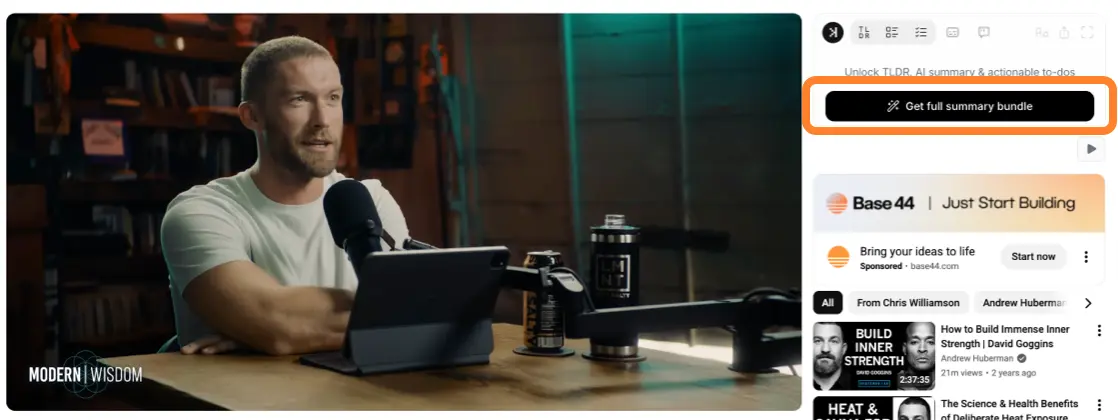
- Check out all tabs: TL;DR, timestamped outline, actionable to-dos, transcript and AI chat.
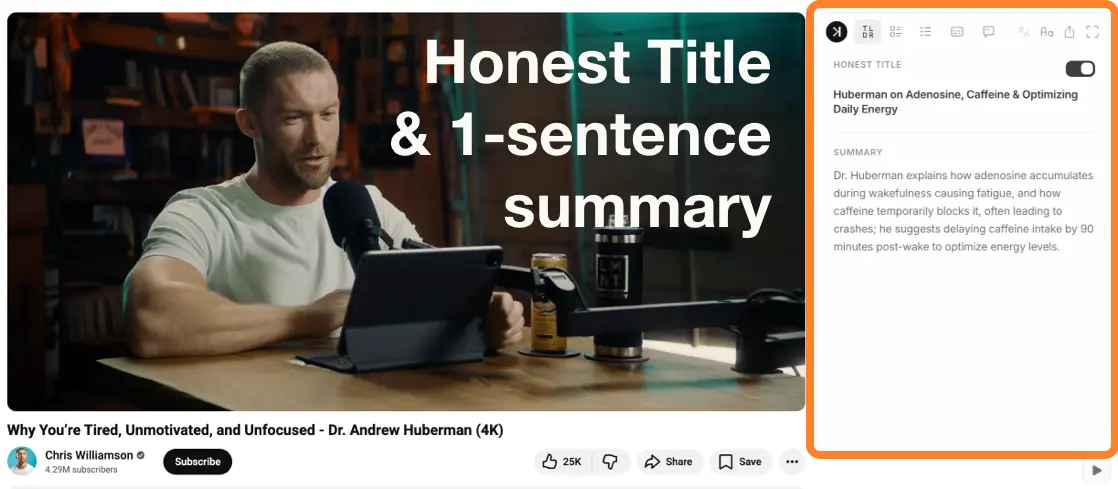
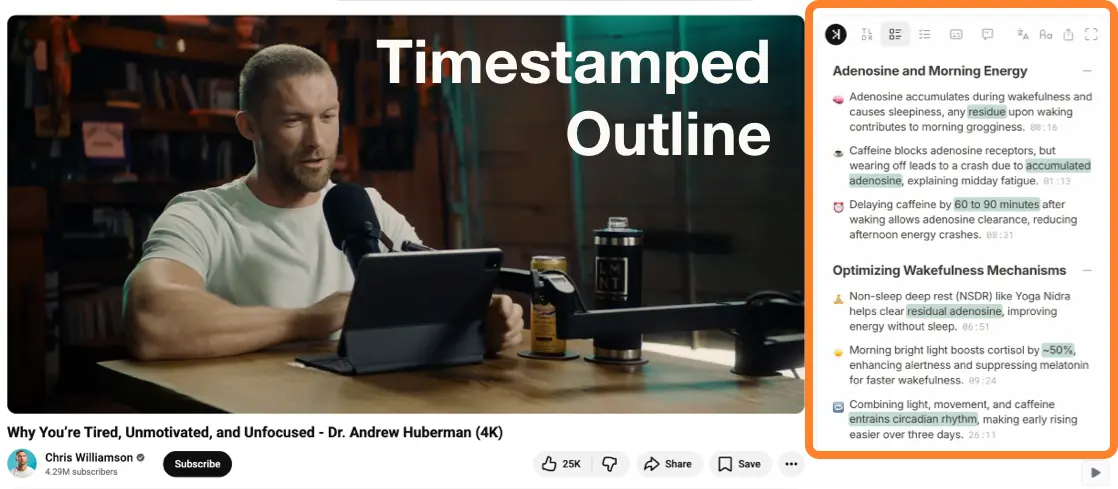
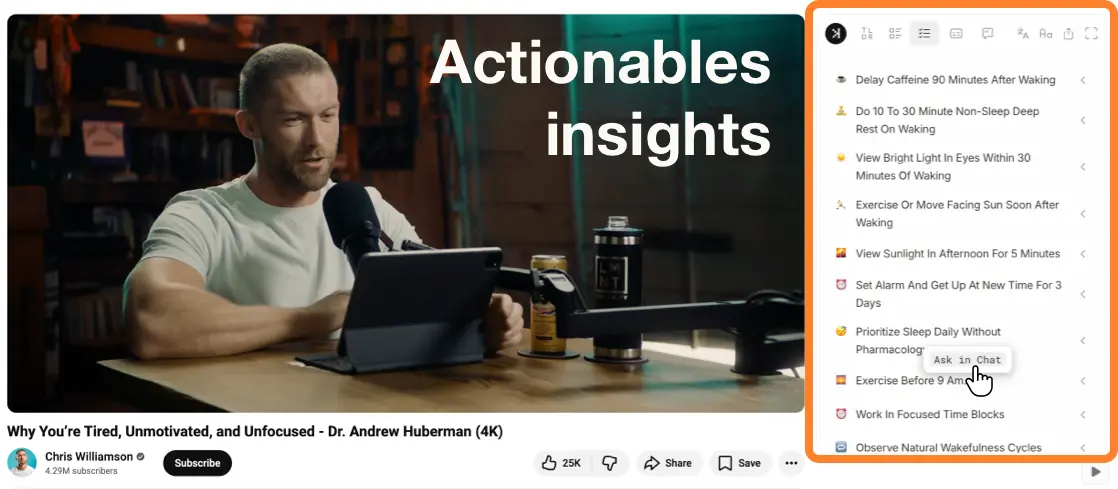
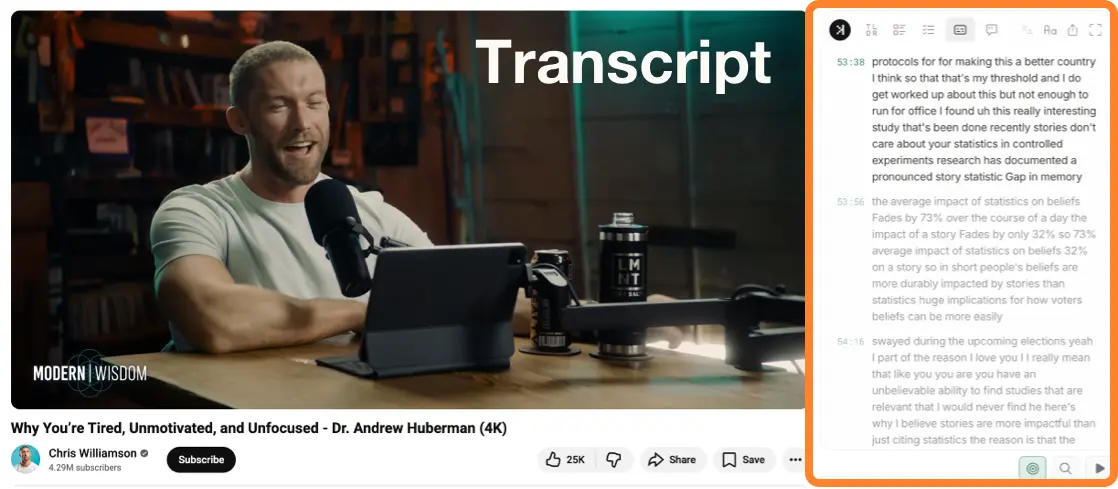
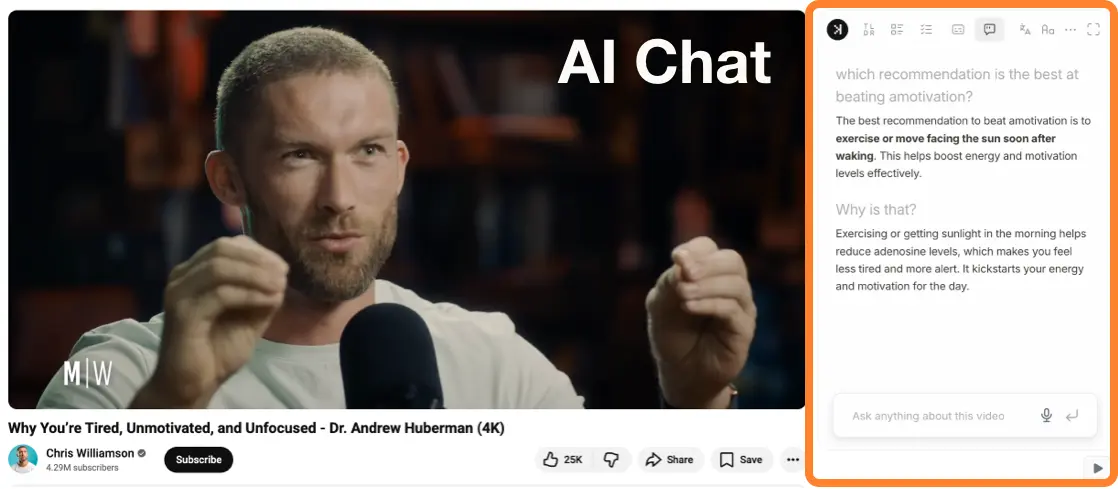
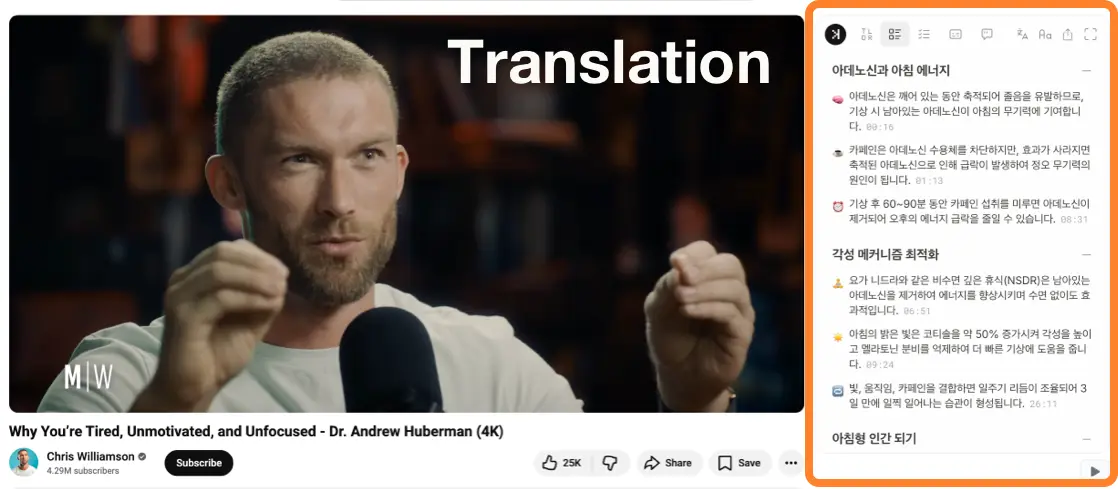
The free tier covers daily summary bundles with unlimited transcripts.
Which method should you use?
All three methods get you an AI summary of a YouTube video for free. The right one depends on how much control you want and how often you do this.
| ChatGPT / Claude | YouTube Ask | One-click extension | |
|---|---|---|---|
| Setup per video | Get transcript, copy and paste into chat tool with prompt | Click Ask to show panel, ask to summarize | One-Click |
| Consistent format | Based on your prompt | Based on your question | Yes |
| Works on long videos | If chosen model has sufficient context window, otherwise response degrades | Yes | Yes |
| Timestamped summary | No | Ask questions to get | Always provided |
| Actionable insights | Prompt to get | Ask questions to get | Always provided |
| Best for | Custom, one-off summaries | No-paste summary & prefers conversational output | Summarizing often & prefers structured output |
TL;DR
Use ChatGPT or Claude when you want custom prompting and do not mind pasting a transcript. Use YouTube's Ask when the feature is available and if you don't mind unstructured output. Use an extension like SkipBait when you summarize videos often and want consistent, structured output every time.
Tips to get a better AI summary
A few small things make any of these methods produce a noticeably better YouTube summary:
- Be specific in your prompt. "Give me 5 key takeaways and 3 action items" beats "summarize this" every time.
- Tell the AI who you are. Adding "I'm a student revising for an exam" or "I'm researching this topic for work" shapes the summary toward what you need.
- For long videos, summarize in sections. If a transcript is enormous, paste it in parts and ask for a running summary - or use a tool built for long videos so you skip the issue entirely.
- Cross-check anything critical. AI summaries are fast but not infallible; for facts that matter, jump to the timestamp and confirm.